Add live chat to an iOS app
Install AdrianChat with Swift Package Manager, open the chat, show unread replies and identify customers.

AdrianChat supports iOS 15 and later, in SwiftUI and UIKit. Source and releases: github.com/nugitech/adrianhq-sdk-ios-swift.
1. Install
In Xcode, choose File → Add Package Dependencies…, paste the URL below, and pick Up to Next Major Version from 0.1.0.
https://github.com/nugitech/adrianhq-sdk-ios-swiftIn a Package.swift:
dependencies: [
    .package(url: "https://github.com/nugitech/adrianhq-sdk-ios-swift", from: "0.1.0"),
],
targets: [
    .target(name: "YourApp", dependencies: [.product(name: "AdrianChat", package: "adrianhq-sdk-ios-swift")]),
]
So customers can attach photos, add these to your app's Info.plist:
<key>NSCameraUsageDescription</key>
<string>Take a photo to send to support.</string>
<key>NSPhotoLibraryUsageDescription</key>
<string>Choose a photo to send to support.</string>
2. Configure: production
Call configure once, as early as possible, so replies can arrive before the customer opens the chat.
import AdrianChat
import SwiftUI

@main
struct AcmeApp: App {
    init() {
        Adrian.configure(workspaceId: "ws_your_workspace_id")
    }

    var body: some Scene {
        WindowGroup { HomeView() }
    }
}
In a UIKit app, call it in application(_:didFinishLaunchingWithOptions:).
3. Configure: local development
Point the SDK at the chat widget running on your machine. Use #if DEBUG so release builds always use production:
#if DEBUG
Adrian.configure(workspaceId: "ws_your_workspace_id", widgetURL: URL(string: "http://localhost:5181")!)
#else
Adrian.configure(workspaceId: "ws_your_workspace_id")
#endif
The iOS Simulator reaches your Mac as localhost. On a real iPhone, use your Mac's network address instead, for example http://192.168.1.20:5181. To allow plain HTTP to local addresses, add this to the debug Info.plist:
<key>NSAppTransportSecurity</key>
<dict>
    <key>NSAllowsLocalNetworking</key>
    <true/>
</dict>
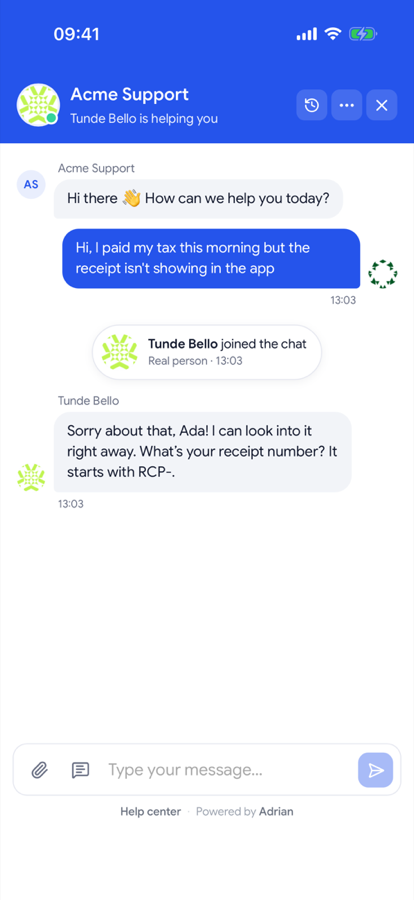
4. Open the chat and show unread replies
struct HomeView: View {
    @ObservedObject private var chat = Adrian.shared

    var body: some View {
        List {
            Button("Help & support") { Adrian.present() }
                .badge(chat.unreadCount)
        }
        .overlay(alignment: .bottomTrailing) { AdrianLauncher().padding() }
        .adrianScreen("Home")
    }
}AdrianLauncheris the round chat button with a badge. In UIKit, useAdrianLauncherButtonandAdrian.present(from: viewController)..adrianScreen("Home")reports the screen to your team. In UIKit, callAdrian.trackScreen("Checkout")inviewDidAppear.
5. Identify customers and sign out
// After sign-in
Adrian.identify(name: user.name, email: user.email)

// On sign-out: the next person on this device starts a new conversation
Adrian.reset()
identify labels the conversation with a name and email. It doesn't prove who the customer is, so verify identity before account changes, as you would on your website.
6. Events
Adrian.shared.onEvent = { event in
    switch event {
    case .messageReceived(let message):
        showBanner("\(message.author): \(message.body)")
    case .unavailable(let reason):
        print("Chat unavailable: \(reason)")
    default:
        break
    }
}
Adrian.shared also publishes unreadCount, primaryColor, latestMessage, isPresented and isAvailable. To open the chat by itself when your team starts a conversation, pass openOnProactiveMessage: true to configure.
Was this article helpful?